Temperamental, it strikes at any time. A little rude, it never asks permission before appearing on your screen.
Annoying, it poisons your daily life as a webmaster. And, to top it all off, it keeps the mystery alive: it is impossible to know exactly what causes it.
It is the 500 error on WordPress. An error you surely never want to see happen… but it doesn’t only happen to others.
Already facing it? By the end of this article, you will be able to fix it thanks to 9 concrete, practical, and detailed solutions.
And if that does not solve your problem, feel free to call on our WordPress agency.
What is a 500 error?
A 500 error is an internal error on the server where a website is hosted. The server encounters an unexpected problem and is unable to display the request sent by the web browser.
The browser then displays an error message on your screen. As a result, the page remains unavailable and does not load.
The Mozilla web browser documentation refers to a “generic catch-all response” when describing this error, because the reason causing it cannot be identified.
More specifically, a 500 error is an HTTP error, which belongs to the family of server errors. Among them, you may also have heard of:
- error 502 (Bad Gateway or Proxy Error). According to Mozilla, this “indicates that the server, while acting as a gateway or proxy, received an invalid response from the upstream server”.
- error 503 (Service Unavailable), which refers in particular to the status of a server that is temporarily unavailable or under maintenance.
In addition to that, you will also find HTTP client errors (your web browser), such as the famous 404 error (page unavailable).
Or redirection errors, such as the equally well-known 301 redirect, which means that a page has been moved permanently.
What forms can a temporary 500 error take?
Error 500 is a generic error: it can occur on WordPress, as on any other CMS (Content Management System).
The error message it displays on your screen can take different forms, with one constant: the presence of English terms, most of the time.
In particular, you may come across the following variants:
- 500 Internal server error;
- Internal server error;
- Error 500 Internal server error;
- 500 Internal server error;
- This page isn’t working: HTTP error 500;
- Temporary Error (500);
- 500 Error;
- HTTP Status 500: The server encountered an internal error () that prevented it from fulfilling the request.
To put an image behind the words, here is what it may look like when it decides to make an appearance:

What are the common causes of an HTTP 500 error?
This 500 error, on WordPress or elsewhere, never happens by chance. Several reasons may explain its sudden appearance on your screen. Here are the main ones:
- an internal error in your .htaccess file. This is an Apache server configuration file, the one most commonly used by web hosts. It can sometimes become corrupted, for example after installing a new plugin, or because of a syntax error in the code. In this case, a 500 error is displayed on your WordPress site;
- an error with your file permissions. It is no longer possible to access or modify them, for example;
- insufficient server memory. Each hosting provider allocates PHP memory to WordPress. If this is not sufficient, your web hosting server will not have enough resources to carry out certain actions. As a result, a 500 error will be displayed on the domain name you want to visit;
- an incompatibility between plugins or themes after a recent installation or an update;
- An incompatible or outdated PHP version. PHP is the server-side language WordPress runs on. For your information, at the time of writing, WordPress required your hosting server to use PHP version 7.4 or higher.
- A recent update to the WordPress Core that went wrong.

What are the consequences of a 500 error on WordPress?
No webmaster likes being faced with a 500 error on WordPress. Even more so when you consider the negative impact it can have on your business and your activity.
The longer a 500 error takes to be resolved, the more you expose yourself to the following consequences:
- a deterioration in the user experience (UX, User Experience). If your visitors cannot access your content, they will not get a solution to the problem they are facing. Frustrated, they will surely go looking to your competitors for what they did not find on the pages of your domain name;
- a drop in traffic, with a potentially negative impact on your organic search ranking (SEO). When Google’s bots repeatedly encounter 500 errors, they will tend to slow down the crawling of your pages (crawl).
And if these 500 errors do not disappear, Google may remove the affected URLs (the web addresses of your pages) from its index.
In that case, your pages will no longer be visible on Google’s search results page (the SERP) until the error is resolved. - a drop in your conversion rate. If potential visitors can no longer access your pages, you will no longer be able to get them to carry out specific actions such as purchasing a product, filling out a contact form, or subscribing to your newsletter.
To help you avoid these annoying inconveniences, now see how to get rid of a 500 error on WordPress with practical, illustrated tutorials covering different scenarios.
9 solutions to fix a 500 error on WordPress
Are you about to try to fix a 500 error on WordPress? Tackle the root of the problem by applying the solutions below in order, if possible.
The steps to perform are simpler and less technical at the beginning. Sometimes, they may be enough to resolve an HTTP 500 error.
This can therefore save you from having to handle sensitive and delicate files that did not need to be touched. And therefore from carrying out support on your WordPress site for nothing.
Reload the page
To start, begin with the most obvious solution: refresh your page. Sometimes, a 500 error is temporary and disappears on its own, in the blink of an eye.
To reload a page in your browser, you have two main options:
- press the F5 key on your keyboard, regardless of the system used (Windows, MacOS, etc.);
- click the icon that refreshes the current page.

If this does not resolve the problem, wait a few minutes and try again.
At the same time, also check how your page displays on different devices (computer, smartphone, tablet) and browsers (Chrome, Mozilla, Safari, Opera, etc.).
You can also use this service to check whether the HTTP 500 error affects everyone, or just you.
The error persists? Clear your web browser cache.
Here’s how to do it in the Google Chrome browser (the operating system used, Windows, MacOS, etc., doesn’t matter), the most widely used by internet users in France:
- Click the 3 small dots at the top of the toolbar, on the right.
- Choose More tools > Clear browsing data.
- Check the “Cached images and files” box and click “Clear data”.

So, what does that show on your screen? If the 500 error remains fixed before your eyes, move on to the next solution.
Contact your hosting provider
You now know that a 500 error is a server error. Therefore, your web host may have information about a possible issue with its services.
Contact them to try to separate fact from fiction. And while you’re at it, explain your problem to them. Even if the issue isn’t caused by their services, you might be able to get help—who knows.
In any case, if you are too often faced with 500 errors, the quality of your hosting provider’s servers may be to blame.
In that case, consider changing plans, for example by switching to a dedicated server if you are on shared hosting (you share the server’s resources with other sites). Or switch to a high-performance hosting provider like Kinsta.
Your web host couldn’t save the day? You’re going to have to take a much closer look at this 500 error on WordPress. However, don’t rush into things!
Before making any technical changes, cover your back by backing up your site (files + database).
The easiest way to proceed, for an inexperienced webmaster, is still to use a backup plugin. Choose either UpdraftPlus or BackWPup.
For your information, you should also know that you can back up WordPress manually by downloading the desired files from your FTP client (File Transfer Protocol). This is software that allows you to connect to your hosting server so you can handle the files and folders that make up your WordPress site.
Another option: use the backup function available in your cPanel interface, if your host offers it.
Check the plugins and theme
Now let’s get to the technical part. A first good reflex is to check your plugins and your theme.
These two can be the cause of a 500 error on WordPress, especially after you have updated them.
To make sure, the first procedure is to deactivate each plugin one by one to find the possible culprit (via the Plugins > Installed Plugins menu).

Each time, reload your page in your browser to see whether the error disappears. Once you have identified the plugin causing the error, delete it before installing it again, or replace it with an alternative plugin.
This first method has one limitation: your WordPress admin interface (back office) will most likely not be accessible. Logging in will be impossible… so you won’t be able to carry out your changes calmly.
To disable your plugins, you will then have two options:
- Use an FTP client such as Filezilla (free and open source). This is the solution we will detail just below;
- Go through your hosting provider’s admin login interface.
Using Filezilla, then, follow these steps after logging in:
- In the root folder (root) of your website, double-click the “wp-content” folder, then rename the “plugins” folder inside it, calling it, for example, “plugins-error”.

2. Create a new folder called “plugins” (like the old one). Following this action, WordPress will automatically disable all your WordPress plugins.
3. Log in to your WordPress dashboard, if you can, then reactivate your plugins one by one, until you identify the culprit.
The process is exactly the same for your theme. If your dashboard is accessible, activate another theme (e.g., a native theme starting with Twenty) to see whether the error persists. If you cannot access your back office, download the folder of your active theme in your Filezilla interface, then delete it.
WordPress will automatically activate one of its default native themes.
If the error has not disappeared, tackle the .htaccess file.
Check the .htaccess file to fix the 500 error in WordPress
If your plugins and theme are not the cause, your .htaccess file may be corrupted. To make sure, recreate one.
First, you should know that this file is automatically regenerated when you update your permalinks (the addresses of your site’s pages). In the WordPress admin, this is done under Settings > Permalinks.
- In the root folder of your WordPress site (generally called public_html, htdocs, or www depending on your hosting provider), change the name of your .htaccess file. For example, call it .htaccess_old.

2. If this operation allows you to access your WordPress admin, save your permalinks and you’re done. If not, move on to the next step.
3. Create a new file called .htaccess in your FTP client. To do this, right-click and select “Create a new file”.
4. Add its default code, provided in the WordPress documentation.

This new .htaccess file still does not allow you to access your site’s pages? Move on to the next solution.
Increase the amount of memory allocated to the server
A temporary 500 error code can also be caused by a limitation of the PHP memory allocated by your hosting provider.
The lower it is, the harder it will be for WordPress to load your site’s resources (images, plugin code, etc.).
Fortunately, you can manually increase the PHP memory limit by adding this line of code to your “wp-config.php” file, located at the root of your site:
define('WP_MEMORY_LIMIT', '128M');
Note that if your hosting provider imposes a memory limit equal to the one WordPress offers by default (64 MB), you will not be able to go beyond it, regardless of the value entered in the line of code above (128 MB, in this example).
Beyond the wp-config.php file, it is also possible to increase the PHP memory limit by adding a line of code to the .htaccess file or the php.ini file, but the procedure is a little more technical and risky. The php.ini file is not always visible in your FTP client, which makes the task less straightforward.
Change the PHP version
You read it a little earlier in this article: WordPress is written in the PHP scripting language, which allows it to run.
PHP is a regularly updated language. For security and performance reasons, it is recommended to use one of its latest versions.
An outdated version of PHP can indeed cause a 500 error on WordPress, because some scripts or plugins need a specific version of PHP to run properly.
Changing your PHP version is very easy through your hosting provider’s cPanel interface (again, if they offer this hosting interface).
To do this, click on “Select PHP Version” in the “Software” section.
Choose the PHP version you want, and that’s it. As a reminder, WordPress recommends a PHP version of at least 7.4.

Updating the PHP version on cPanel can make your site unavailable, especially because some plugins may not be compatible with it. This is not very common, and it can mainly happen with the latest PHP versions.
To be on the safe side, use a staging environment, for example with the WP Staging plugin.
Check file and directory access rights
Have all your efforts still not paid off? It is possible that the file and directory permissions of your WordPress site or sites have caused a 500 error.
This happens when access rights are incorrect due to an error or malicious manipulation.
Regarding file and folder access rights (permissions), the WordPress documentation recommends the following:
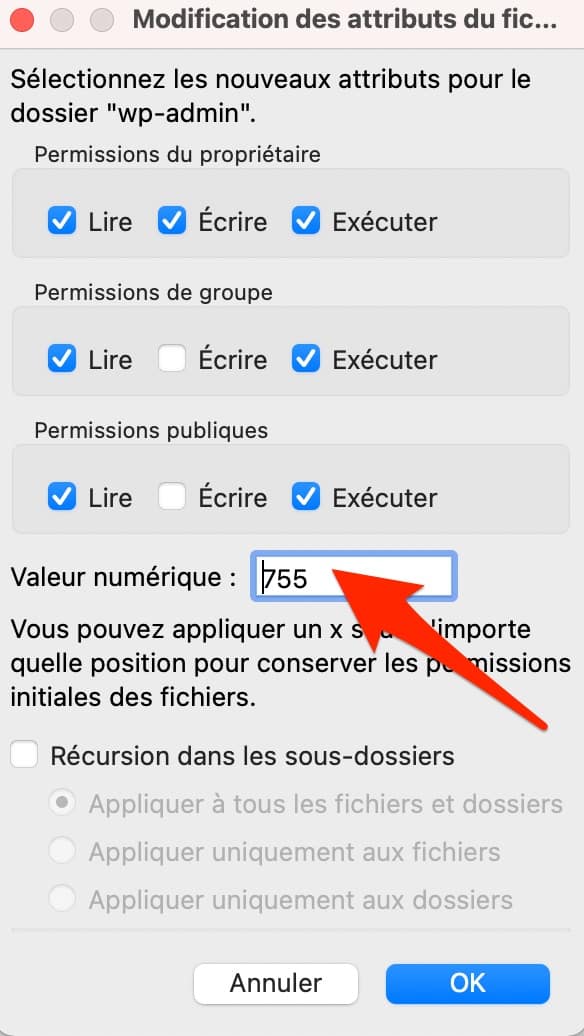
- All directories should have 755 or 750 permissions.
- All files should have 644 or 640 permissions. One exception: wp‑config.php, which should have 440 or 400 permissions to prevent other users on the server from reading it.
- No 777 permissions should ever be given to a directory.
To find out whether your files and directories have the correct permissions, check them by connecting to your FTP client, then take a look at the “Access rights” column.
If something is wrong, right-click the relevant file or directory, then change its permission by choosing “File permissions”:
Check your server logs to fix the HTTP 500 error
Checking your file permissions didn’t change anything? Move straight on to an even more technical solution: checking the logs for your hosting server.
A log is a text file that shows the history of events that occurred on your server. You can therefore find traces of a 500 error in WordPress.
Some hosting providers offer a log journal in their interface, which makes the task easier. If yours does not fall into this category, once again your FTP client can provide an answer.
If a log file is present there, it will appear, for example, in this form: error.log.
Can’t see it? Use WordPress debugging mode (“debug”) to display it, preferably on a test site (locally or in a staging environment).
Use debugging mode by enabling a PHP constant called WP_DEBUG. You will find it in the “wp-config.php” file, which is located at the root of the site (in the “public_html” folder in our example) in your FTP client.
In this file, manually replace the value “false” with “true” on the line below:
define( 'WP_DEBUG', true );define( 'WP_DEBUG_LOG', true );
define( 'WP_DEBUG_DISPLAY', false );
Any errors related to PHP will appear in a log file named debug.log, accessible via your FTP using the following path: wp-content > debug.log.
If you want your errors to be displayed on the screen, simply set the constant 'WP_DEBUG_DISPLAY’ to the value true.
And when you have finished debugging your site, remember to set the constant 'WP_DEBUG' to false (no need to delete the code snippets).
Reinstall the WordPress Core
The last resort for getting rid of persistent 500 error codes? Reinstalling the WordPress Core files, that is, the original files present when you download WordPress.
To do this, follow the steps below:
- Download the same version of WordPress as the one currently running on your site. They are all available on this page. Unzip the archive.
- Upload the wp-admin and wp-includes directories to the root of your site, using your FTP client. These two directories will automatically overwrite the wp-admin and wp-includes folders already present.

3. Refresh the page showing the 500 error. In principle, this should have worked.
You will notice that we did not touch the wp-content directory, which notably contains your theme and plugins.
This is normal: in principle, they are not the cause. And that way, you do not affect the features already installed on your site or its visual structure, which is controlled in particular by your theme.
If you have gotten into the good habit of backing up your site frequently, you can also restore it using your most recent backup. This is an effective quick fix for the moment, but be careful.
It will not permanently resolve your 500 error problem.
If your latest backup dates back several days or even several weeks, you will lose the benefit of all the additions made in the meantime, whether in terms of content or design.
What should you do if a 500 error persists on WordPress?
Because it appears without warning and gives no indication of the source of the problem, a 500 error on WordPress is often confusing for the webmaster.
Throughout these lines, you have discovered how to fix the 500 error using several solutions, such as checking your plugins and your theme, or creating a new .htaccess file.
One thing is certain: it is better to fix this error quickly, otherwise you risk harming your site’s user experience, your SEO, and your conversions.
Would you like support in implementing our various solutions to resolve a 500 error? Contact the Maintenance WP team, specialists in technical support for WordPress.
Available 7 days a week, we will offer you a tailor-made solution that meets your needs quickly, professionally, and effectively.